

How to Fix the “Unable to Detect In-Game GUI Offset” Error in Natro Macro

If you’re running Natro Macro and suddenly see the message “Unable to detect in-game GUI offset,” don’t panic; your macro isn’t crashed. This warning simply means that Natro Macro is having trouble reading your screen accurately, which prevents it from doing its job properly.
Since Natro Macro is based on pixel and image detection to perform key tasks like firing the red cannon, converting honey, detecting planters, and tracking quests, any display misconfiguration can cause it to stop working.
The good news is that you can fix it instantly in a few steps, as it is usually caused by a simple setting on your PC or in Roblox. Let’s discuss every possible cause and the error you might face, and exactly how to resolve it.
Unable to Detect In-game GUI Offset
When you see “Unable to detect in-game GUI offset”, it means that the macro cannot read your screen properly. Natro Macro relies on pixel and image detection to use the red cannon, convert honey, detect planters, and track quests. This message is not a crash. It’s a warning that something on your PC or in Roblox is blocking accurate screen detection.

Causes
Fixes
1. Update Natro Macro
Check your current version in settings. Install the latest version of Natro Macro from our website. Also, read the how-to use and setup guide, and see if you are setting up the macro correctly.

2. Reset GPU Settings
Open Task Manager, go to “Performance” and click “GPU”. It will be AMD, NVIDIA, or Intel, and each has different ways of disabling all image enhancements, sharpening, or custom filters. For quick setup, restore defaults, as that will reset all filters and enhancements.
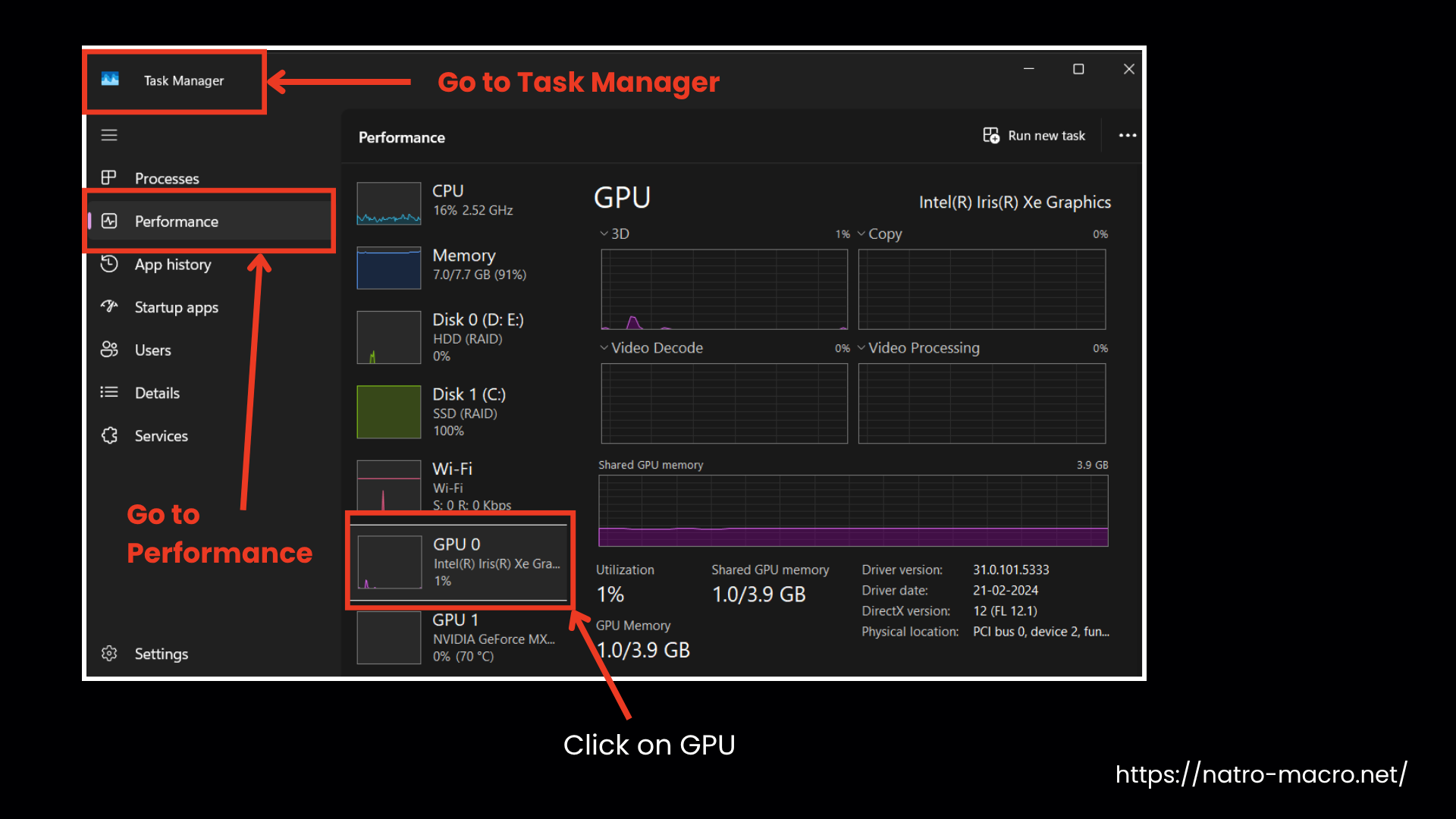
3. Fix Windows Display Settings
If you are using multiple monitors, make sure to apply these settings to the primary display that’s running Roblox.
- Right-click the desktop and select Display Settings.
- Turn HDR Off.
- Set Scale to 100 percent, even if larger scales are recommended.
- Confirm that your screen resolution is suitable. Natro Macro works best with standard 16:9 resolutions, such as 1920 × 1080 or 1366 × 768. The most recommended resolution is 1920 × 1080 for optimal performance.
- Avoid very small windows or extremely high/low resolutions (below 1366×768) without resizing the window.
- Go to “Accessibility” and turn “Color Filters” Off.

4. Correct Roblox Account & Avatar
Once the Windows settings are configured, open Roblox and press “Esc” on your keyboard. The Settings menu will appear. Go to Account Info and set the following:
- Language: English
- Camera Mode: Classic (Default)
- Movement Mode: Keyboard
- Locate Graphics Mode. It might be “Automatic/Low”. Move the slider to the max so it’s “Manual”. Graphics Quality 1-3 is recommended, but you can set it to max as well.
- Performance Stats: Off
- MicroProfiler: Off
- Camera Invert: Off

Go to the “Avatar” section and set these:
- Use normal Roblox body proportions
- Remove Rthro parts
- Remove custom jump and fall animations
5. Check Bloxstrap (If Installed)
- Open Bloxstrap and:
- In “Mods”, turn off “Disable Desktop App”, “Custom Font”, and “Disable Fullscreen Optimizations”.
- Preferred Emoji Type: Default
- Fast Flags: Default

6. Remove Screen Interference
- Close the Discord overlay.
- Turn off FPS counters and Performance Stats in Roblox settings.
- Increase the Roblox window size only if the Roblox chat covers the “E Fire Red Cannon” button near the cannon. Adjust the size just enough so the button is fully visible.
- Disable “Always on Top” inside Natro Macro.
7. Fix Bitmap File Issues
If the Natro Macro tool stays open and does not scroll, the issue is usually caused by incorrect bitmap naming.
Bitmaps are image files that Natro uses to recognize UI elements. If they are deleted, renamed, or duplicated (for example, filename (1).png), detection fails. Use the official bitmap pack from the server and follow the steps to reinstall the original bitmap folder.
After completing all the steps above, restart Natro Macro and Roblox. If the prompt still appears, click “OK”, as the message may sometimes appear due to a temporary misread. The macro will continue to function normally.
Final Words
The “Unable to detect in-game GUI offset” warning may seem alarming at first, but in most cases, it is caused by an incorrect display setting. Check whether the issue is related to Windows scaling, a GPU filter, a Roblox configuration, or a bitmap file issue, and fix it using the techniques listed above.
Work through each step one by one, then restart Roblox and Natro Macro when you’re done. The macro should start detecting your screen accurately again. If the message appears once more after applying all the fixes, simply click “OK” and let it continue running, as it is often just a one-time misread. If you still experience issues, contact us for further support.


